Most Amazon shoppers decide from the image block. They swipe through your photos, glance at a few details, then either add to cart or go back to the search results. Infographics are the secondary images that do the explaining in that moment: what the product does, how big it is, what comes in the box and why it beats the option they saw a minute ago.
Below are nine Amazon infographic ideas you can use on your own listing, plus design tips that keep them clear and compliant.
What is an Amazon infographic?
An Amazon infographic is a listing image that combines product photography with short text, icons or simple graphics. Its job is to get information across fast, often faster than a shopper would get it from your bullet points.
Where infographics belong
Infographics go in your secondary images, not your main image. Amazon’s main image rules generally call for the product on a pure white background with no added text, graphics or badges. We cover the details in our guide to the Amazon main image rules. Your secondary slots are where you have room for callouts, labels and diagrams. Check the current image guidelines for your category in Seller Central, since some categories have extra rules.
9 Amazon infographic ideas
You don’t need all of these. Pick the ones that answer your customers’ biggest questions.
1. The key features callout
Show the product on a clean background with three to five short labels pointing to its most important features. Keep each label to a few words. This is often the first infographic shoppers see after the main image, so lead with what matters most.
2. The size and dimensions image
Wrong expectations about size lead to disappointment and returns. Show the product with clear measurement lines. Consider placing it next to a familiar object for scale, like a coffee mug or a sheet of paper. Make sure every measurement is accurate.
3. What’s in the box
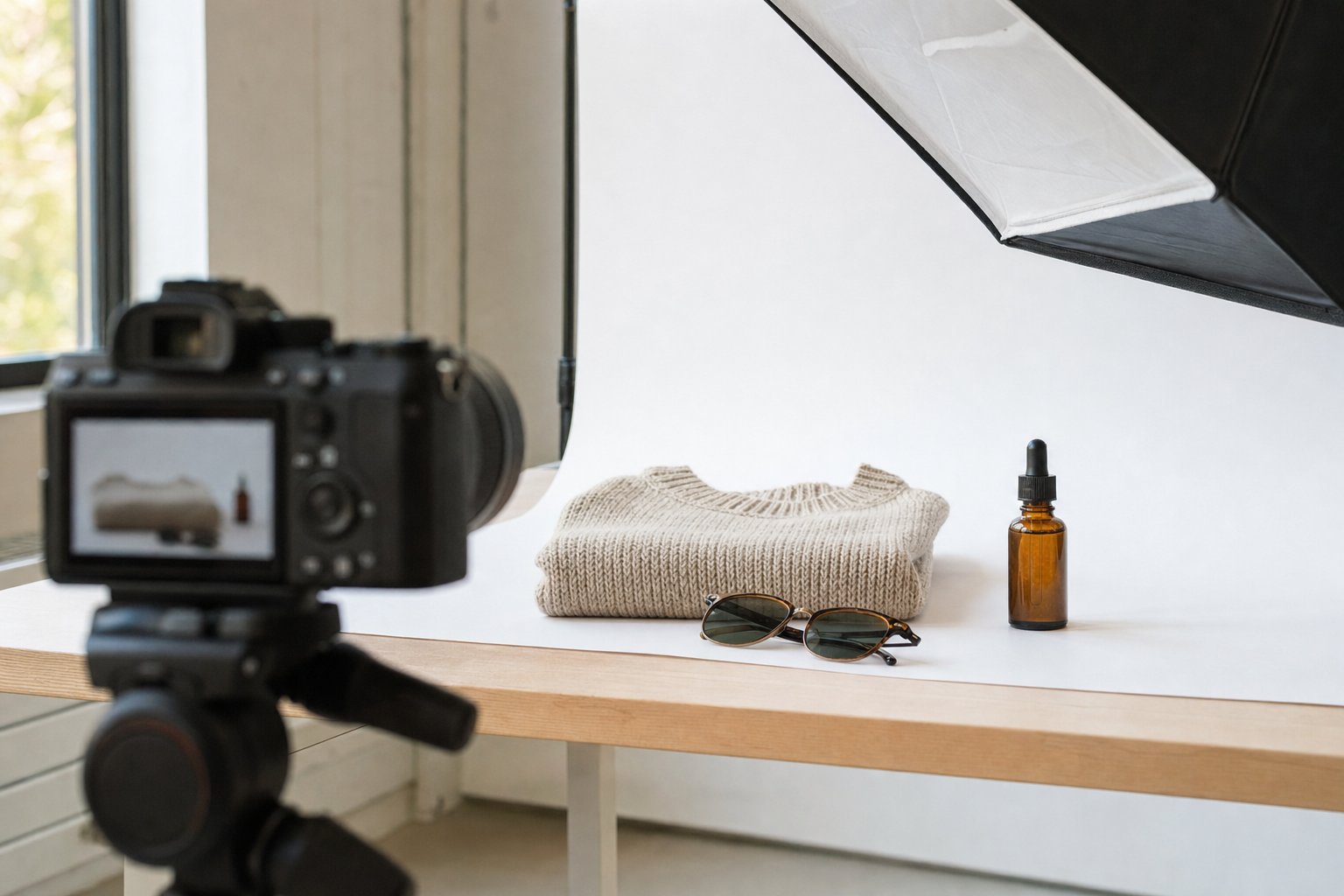
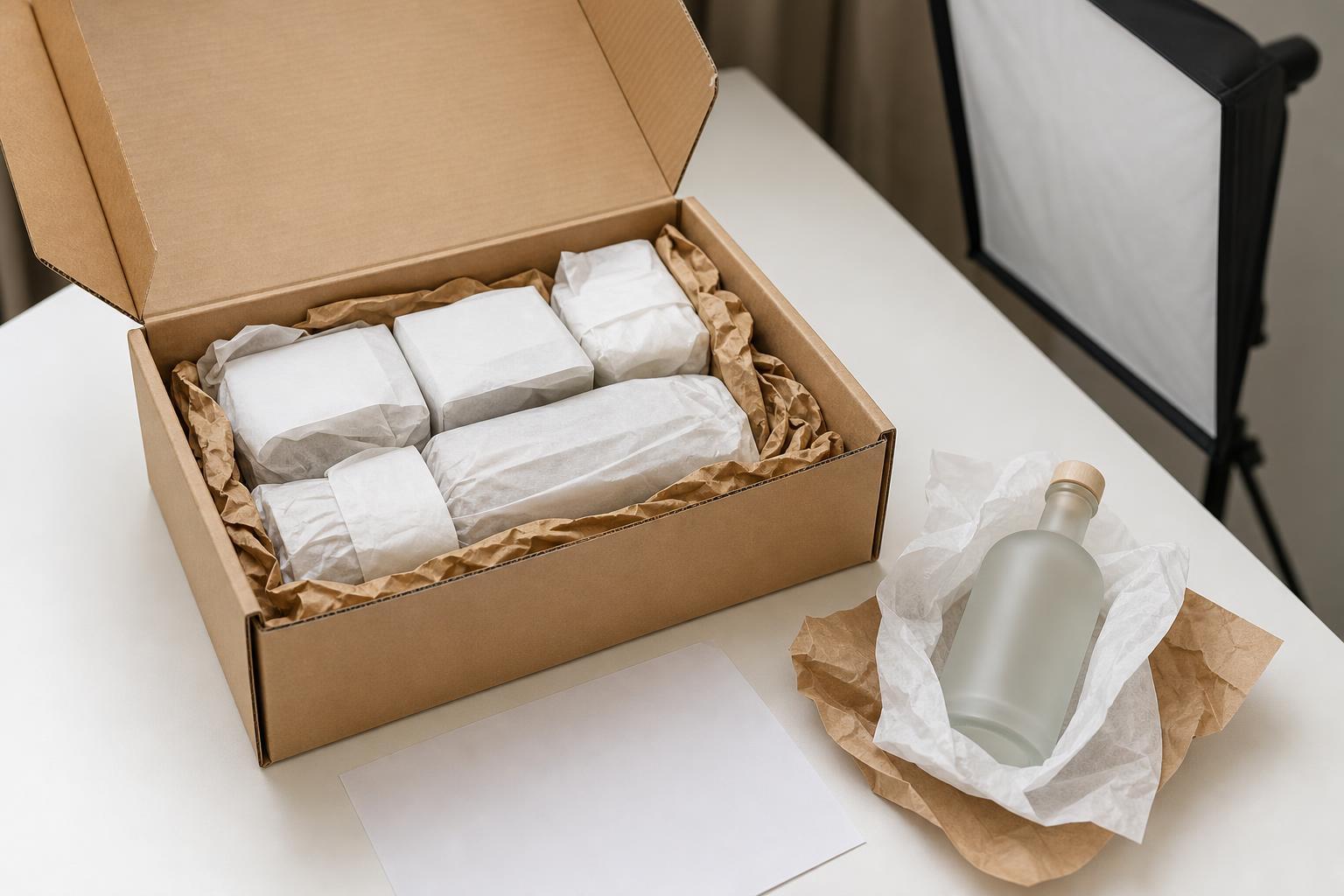
Lay out everything the shopper receives: the product, accessories, refills, manuals and any extras. A clean flat lay with small labels removes doubt and makes the package feel complete.
4. How to use it in simple steps
If there is any learning curve, show it in three or four numbered steps. Each step gets one photo and one short line. This works well for products that need assembly, mixing, charging or setup.
5. Materials and ingredients close-up
Use a macro shot to show texture, stitching, finish or ingredients, then label what the shopper is looking at. Close-ups help a product feel real when the buyer can’t touch it.
6. Problem and solution
Show the frustration your product solves next to the result it delivers. Keep it honest and specific. Skip exaggerated before and after claims you can’t back up.
7. Your own product line comparison
If you sell several sizes, models or bundles, a simple comparison chart helps shoppers pick the right one without leaving your listing. Compare only your own products. Naming or showing other brands in listing images can cause problems with Amazon’s policies.
8. Compatibility and fit
For products that work with other items, such as accessories, replacement parts or organizers, show clearly what they fit and what they don’t. Use generic illustrations or your own photography, not other companies’ products and logos.
9. Care and durability
Show how to clean, store or maintain the product with simple icons and a short line each: dishwasher safe, machine washable, water resistant and so on. Only include claims that are true for your product.
Design tips for infographics that work
Design for a phone screen
Many shoppers browse Amazon on their phones, where your image shrinks to a fraction of its desktop size. Use large type, high contrast and very few words. A good test is to view the image on your phone at arm’s length. If you have to squint, simplify it.
Let the product stay the hero
The product should fill most of the frame, with graphics and text in support. When icons, badges and paragraphs crowd the image, the product gets lost and the message gets harder to read.
One message per image
Each infographic should answer one question. A size image is about size. A features image is about features. Cram several ideas into one image and usually none of them land.
Keep the style consistent
Use the same fonts, colors, icon style and lighting across every image in the set. Consistency makes your listing look professional and helps shoppers recognize your brand the next time they see it. You can see how sets hold together in our portfolio.
Start with great photography
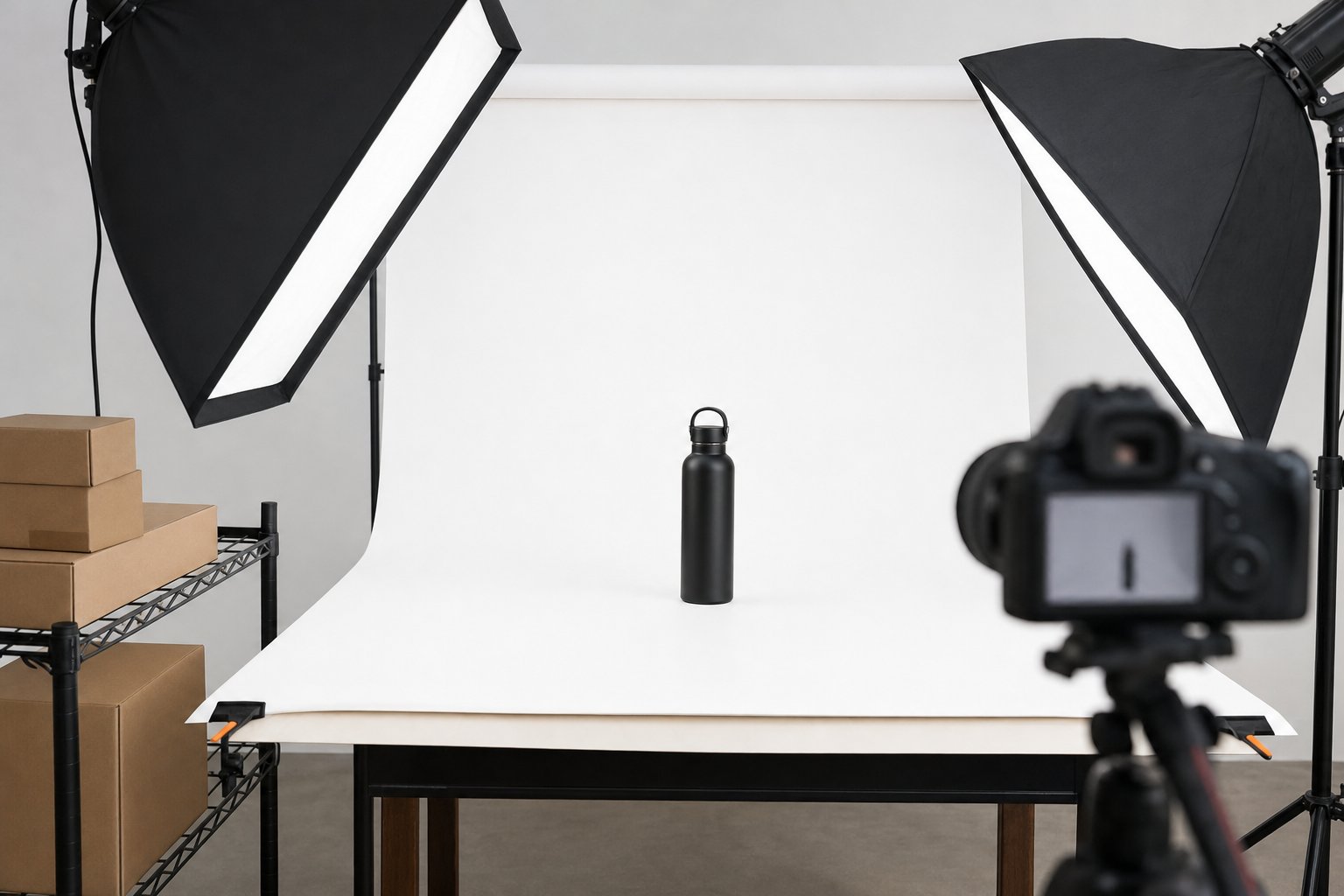
An infographic is only as strong as the photo underneath it. Graphics can’t fix soft focus, poor lighting or inaccurate color. Plan your infographics before the shoot so the photographer captures the right angles, close-ups and empty space for text. That planning is a core part of good Amazon product photography.
Common infographic mistakes to avoid
- Too much text. If the image reads like a paragraph, shoppers will skip it.
- Tiny fonts. What looks fine on a large monitor is often unreadable on a phone.
- Unverifiable claims. Words like “best” or “number one” without proof can hurt trust and may break Amazon’s rules.
- Busy backgrounds. Patterned or cluttered backgrounds compete with your text and product.
- Repeating the same image. Every slot is valuable. Each one should show something new.
How to plan your infographic set
Start by listing the questions shoppers ask before buying. Your reviews and customer questions are a good guide. Rank them by how often they come up and how much they affect the purchase. Then assign one question to each secondary image slot, sketch a rough layout for each and build a shot list from those sketches. If you’re not sure how many slots to fill, see our guide on how many images an Amazon listing needs.
That shot list is what turns a photo shoot into a listing that works. It tells the photographer exactly which angles, close-ups, flat lays and lifestyle scenes to capture. At our studio, brands ship us their products, we agree on the shot list before anything is photographed, and the finished images are delivered online.
Frequently asked questions
Can my Amazon main image be an infographic?
Generally, no. The main image should show the product on a pure white background without added text or graphics. Use your secondary images for infographics, and check the current rules in Seller Central.
How many infographics should an Amazon listing have?
There is no fixed number. Many sellers mix infographics with clean product shots and lifestyle images, so the set feels balanced and each image answers a different question.
Should I design infographics myself?
You can, but strong infographics need sharp photography, clean layouts and copy that is short and accurate. If your listing matters to your business, it helps to have the photography and design planned together.
Can I use icons and illustrations?
Yes, as long as they are clear, original or properly licensed, and don’t include other brands’ logos or products.
Get infographics built around your product
Product Captures creates Amazon listing images, infographics and A+ Content imagery from photography shot specifically for your listing. Learn more about our Amazon product photography, or see what’s included on the ecommerce packages page. We can also fit shoots to tight budgets. When you’re ready, get in touch to plan your shoot. Our studio is in the Grand Rapids area, and brands anywhere can ship their products in.