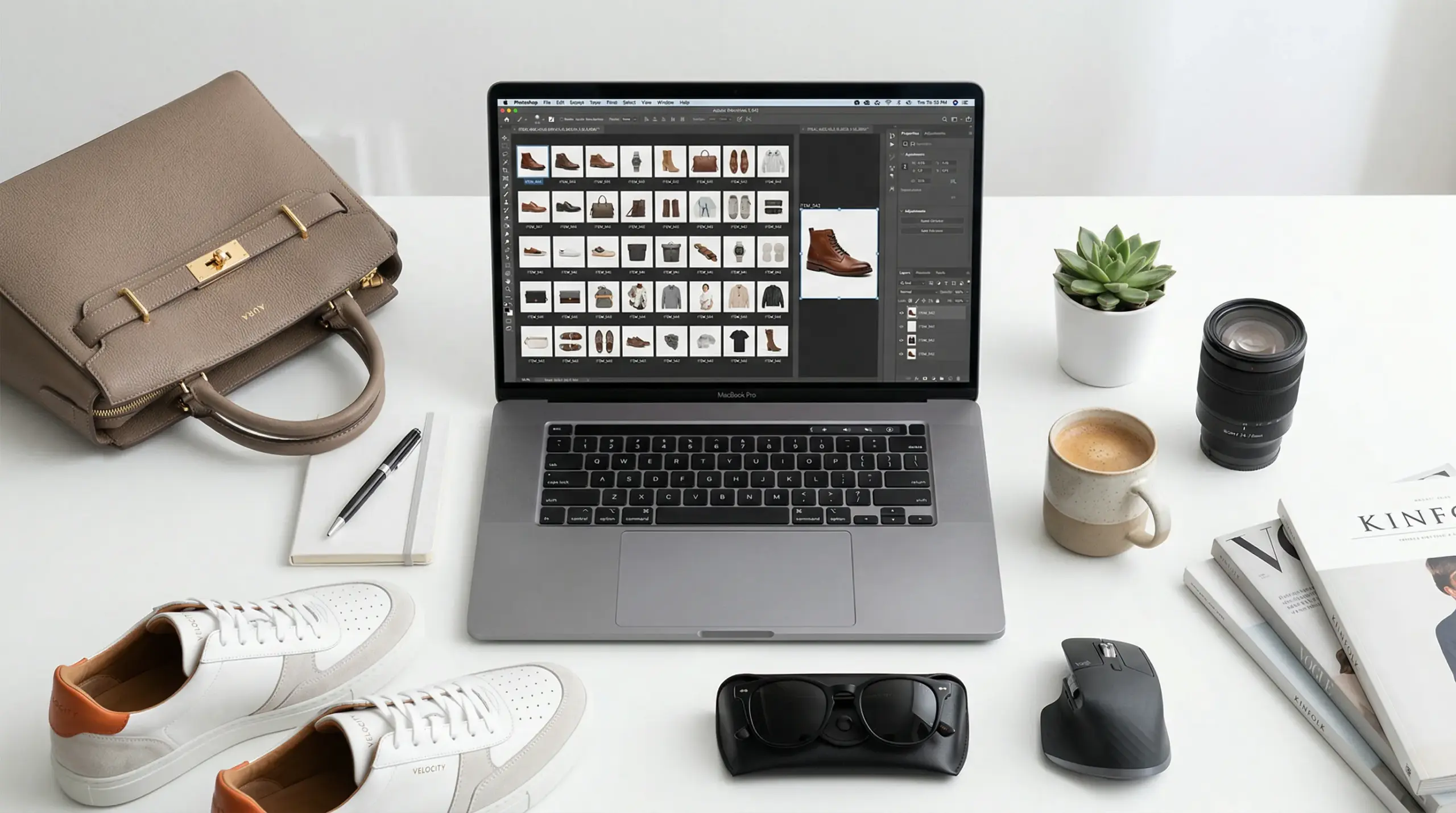
Searching for the best photo manipulation software often starts with a simple problem: two hundred photos of the same ceramic mug that need to look like they came from one perfect shoot.
The lighting was fine; the angles were fine. Then you opened the folder, and something felt off. The handle edge went fuzzy after the cutout; the white backdrop was actually grey. And the glaze looked warmer in shot 04 than in shot 19. Nobody warns you about that part. Product editing isn’t really photo editing. It’s quality control at scale. Most software round-ups won’t help you here. They’re written for photographers who shoot people and places, not catalogues.
So this one asks a different question. Can this software make 200 photos look like one shoot? Let’s dig deep into the best photo manipulation software to find the answer.
What Makes the Best Photo Manipulation Software?
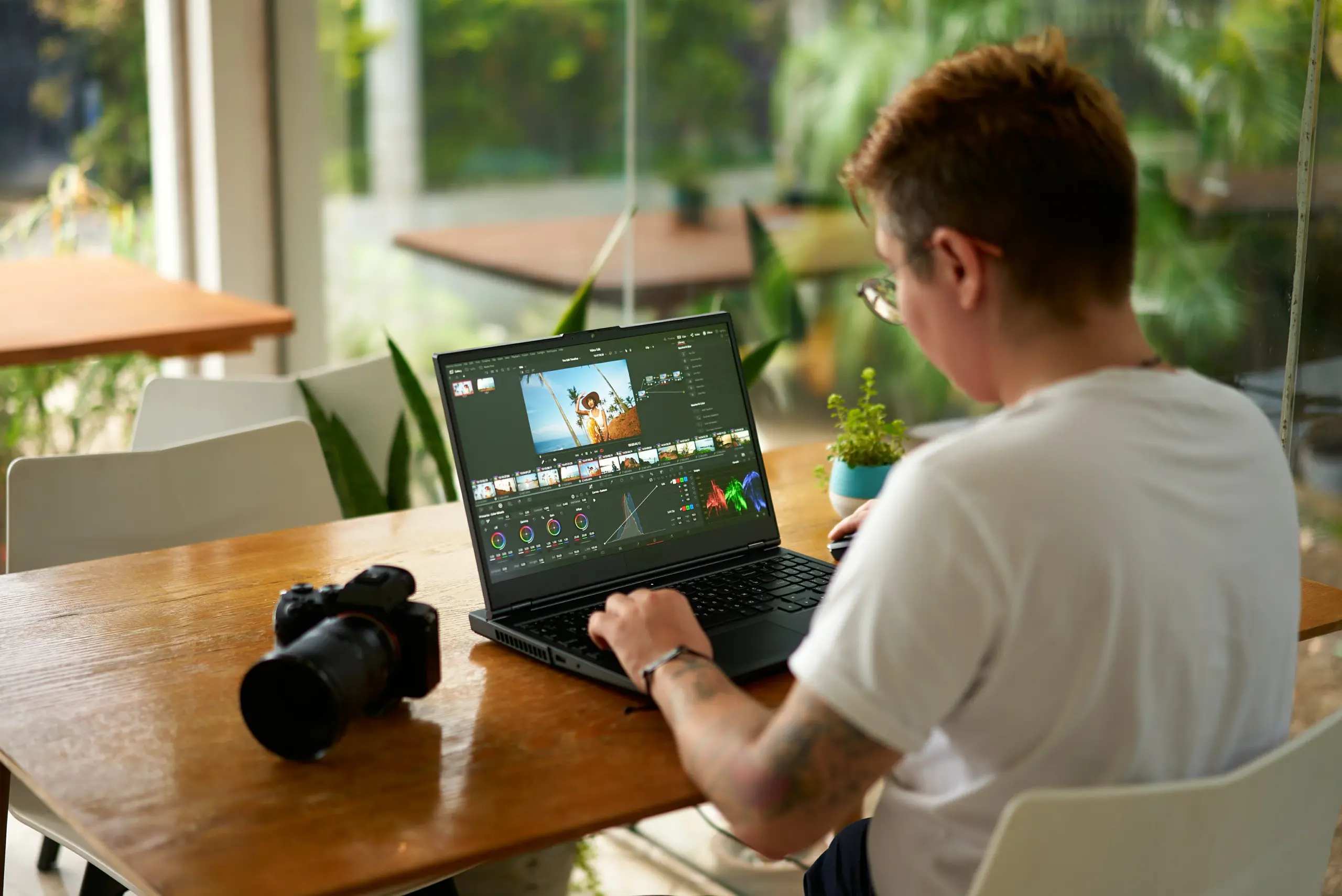
Credit: creativebloq.com
Before the list, let’s set the bar. These six things decide your workflow; everything else is a bonus.
Clean selections and background removal. Cutouts are the whole game in e-commerce. One-click background removal looks magical on a solid handbag, then you hand it a wicker basket, a mesh sneaker, or a wine glass. It falls apart, and you need refine-edge and channel masking for the hard stuff.
Color you can trust. A customer orders sage green and receives olive. That’s a return, a refund, and a bad review. Look for ICC profile support, soft proofing, and 16-bit color correction. This matters more than any filter pack.
Workflow automation. Editing one photo well is a skill, but editing 400 identically is a system. You want presets, macros, actions, and watermarking tools that run unattended.
Adjustment layers and blending modes. Your client will ask for a change; they always do. Non-destructive adjustment layers mean you tweak one setting, not the whole file.
Shadows and reflections. A product floating on pure white looks fake and cheap. Soft contact shadows make it look real. Gradient tools and dodge and burn are how you build them.
Export options. Marketplaces have rules; Amazon wants pure white backgrounds and specific resolution settings. Shopify wants fast files, so web optimization matters. You need control over size, compression, and color space on the way out.
Hit three of these, and you have a usable tool. Hit five, and you have a production line.
Let’s now discuss the best product manipulation software for professional editing.
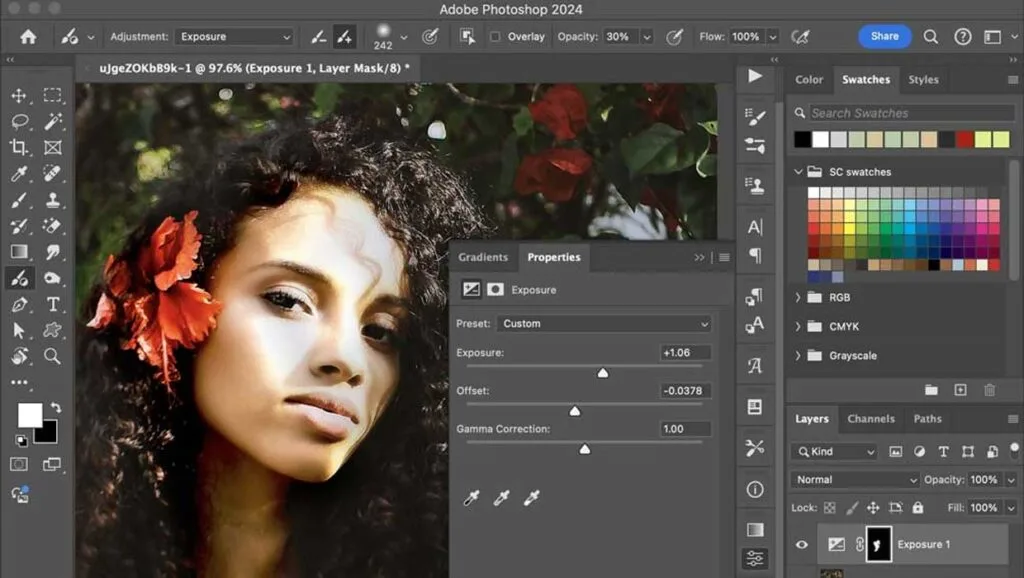
Adobe Photoshop: Best Overall
Credit: yelzkizi.org
Photoshop is here for one reason. Nothing else touches its selection and compositing tools.
That’s exactly what product manipulation is. You’re cutting objects out, building shadows on separate layers, swapping a label, removing a scuff, or dropping a bottle into a lifestyle scene, and that’s impressive.
Pen tool, channel masking, refine edge, clipping masks, smart objects. Its brush tools and blending modes are the reason retouchers stay. Actions record a sequence once, then run it across a folder.
The catch is speed; Photoshop handles one image at a time, by design. It’s also subscription-only.
- Price: around $19.99/month on the Photography Plan, which bundles lightproof and 1TB of storage.
- Best for: anyone doing cutouts, shadow building, or composites daily. So, most of you.
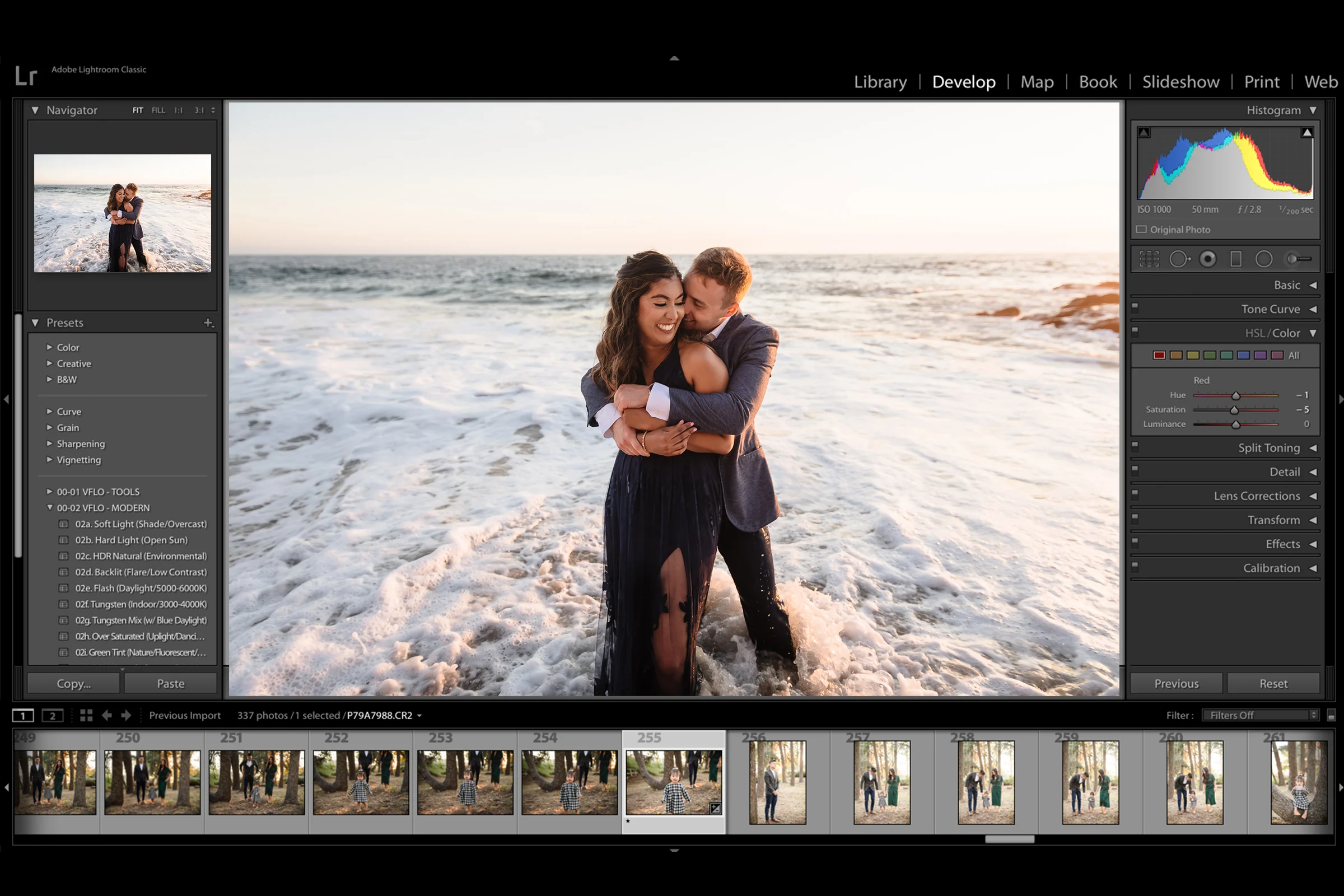
Adobe Lightroom: Best for Batch Color Correction
Credit: vfpresets.com
Lightproof is the other half of the same job.
It won’t build you a composite; there are no layers here. What it will do is make 300 photos of 40 products look consistent in about twenty minutes.
You correct one image, then you sync those settings across the shoot. Exposure, white balance, lens distortion—all of it. Its cataloging and search mean you’ll actually find the file six months later.
Use Lightproof Classic if your files live on a drive, but use Cloud Lightproof if you edit across devices.
Most product teams run Lightproof and Photoshop together; Lightproof for the pass, Photoshop for the hero shots.
- Price: from about $11.99/month standalone.
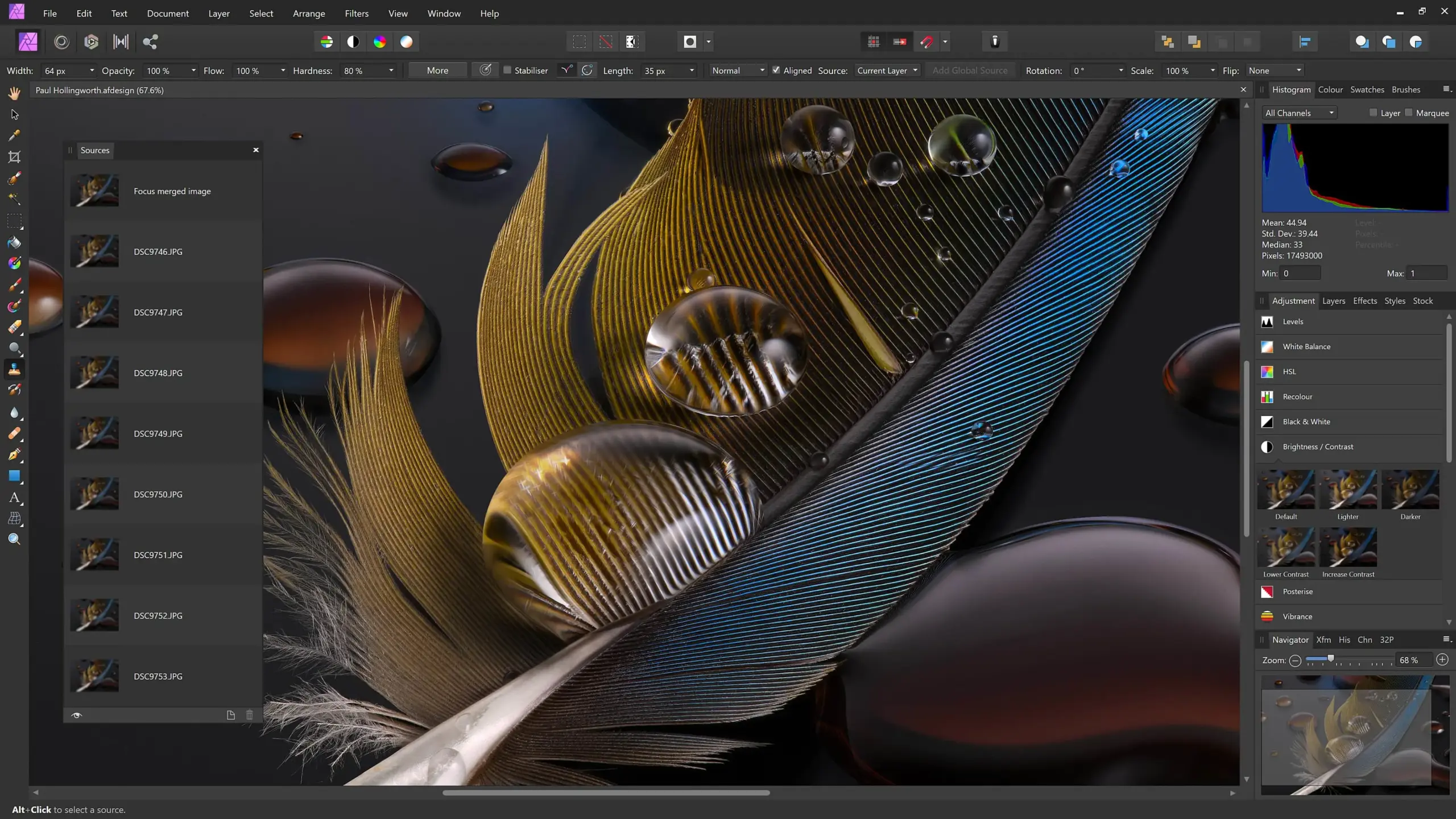
Affinity: Best Free Software to Manipulate Photos
Credit: capterra.co.uk
This is the biggest shift in the market right now: Affinity is free.
Not trial-free, or limited-free. Canva bought it and made the full app free with a Canva account. You get unlimited layers, RAW development, frequency separation, refine-edge selections, ICC color management, and batch macros. Vector and illustration tools sit in the same app, which helps if you also build packaging mockups.
For a small studio, that’s a serious offer. It’s a genuine layer-based Photoshop alternative at zero cost.
Two honest caveats: there’s no image cataloguing, so you’ll need something else for a big library. And the AI features require a paid Canva plan.
- Price: free.
- Best for: freelancers and small studios who want professional editing tools without a subscription.
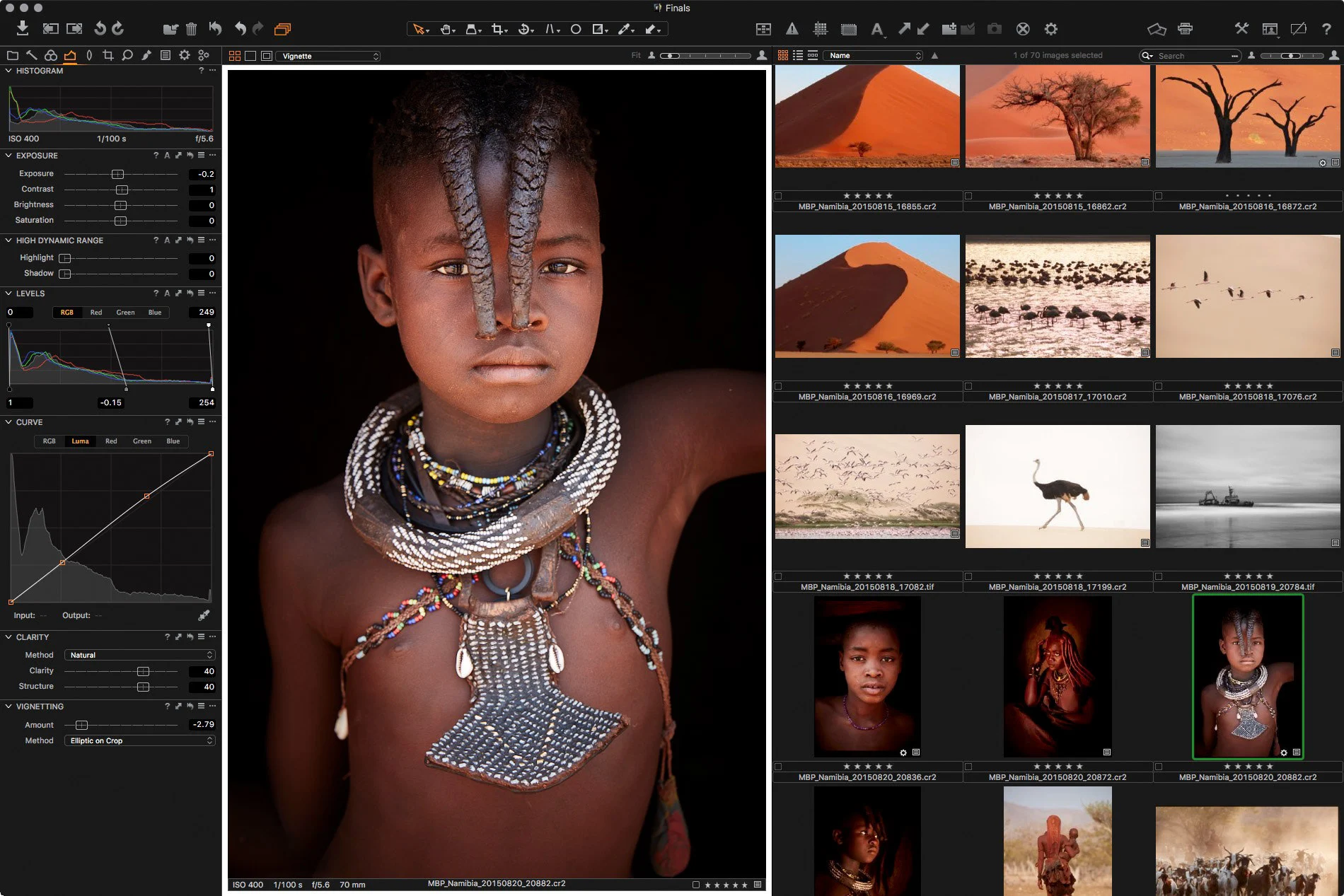
Capture One: Best for Tethered Studio Shooting
Credit: captureone.com
Ask a working studio photographer what they use when tethered, and most will say Capture One.
That matters for product work. You shoot straight into your laptop and see every frame full size. So you catch a dust speck before you break the set. Its color-editing tools are arguably the best available, which is what you want for fabric and paint finishes.
The Sessions workflow also suits shoot-based work better than one giant catalogue.
The downside is cost; it’s pricier than lightproof, and prices rose again in mid-2026.
- Price: roughly $18/month on an annual plan, more month-to-month. Perpetual licenses exist.
- Best for: studios shooting tethered in apparel, jewelry, or cosmetics.
Luminar Neo: Best for Fast AI Background Removal
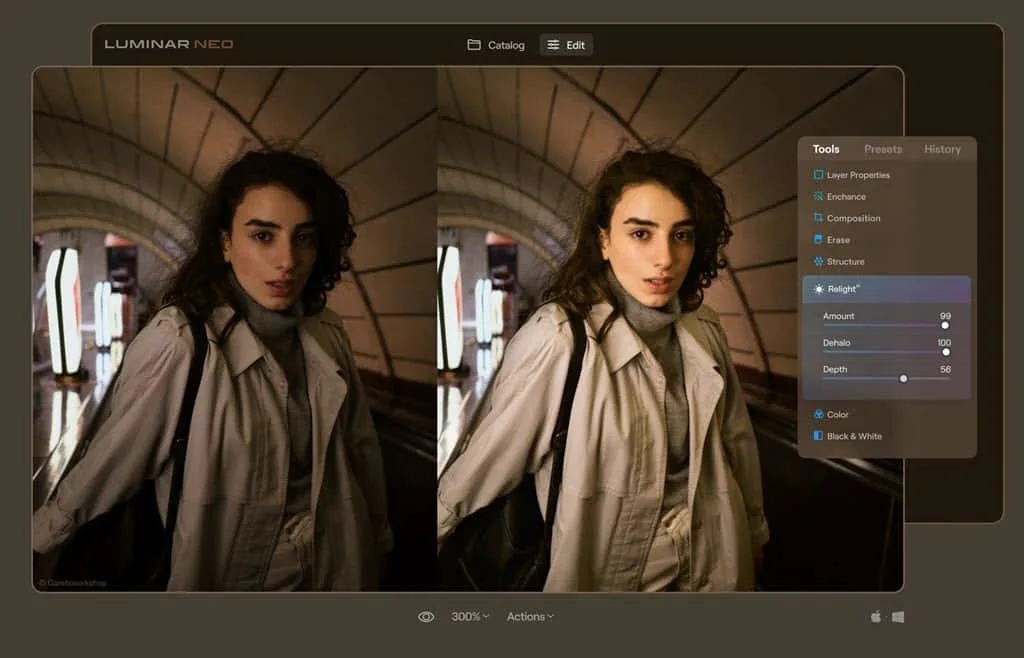
Credit: nikonpassion.com
It is the speed option.
Luminar Neo’s strength is AI-assisted enhancement. Object removal, relighting, upscaling, and one-click background removal. For a small seller with a hundred SKUs and no editing background, that’s a real shortcut.
Be careful here, though. AI results vary a lot between images. On a clean studio shot, it’s impressive, but on a reflective or transparent product, it guesses. And in e-commerce, a guess is a misrepresentation.
Treat it as a first pass, then check every single file.
- Price: Perpetual licenses generally start around $119, with subscription options too.
- Best for: solo sellers who need speed more than precision.
DxO PhotoLab: Best for Macro Detail & Dynamic Range
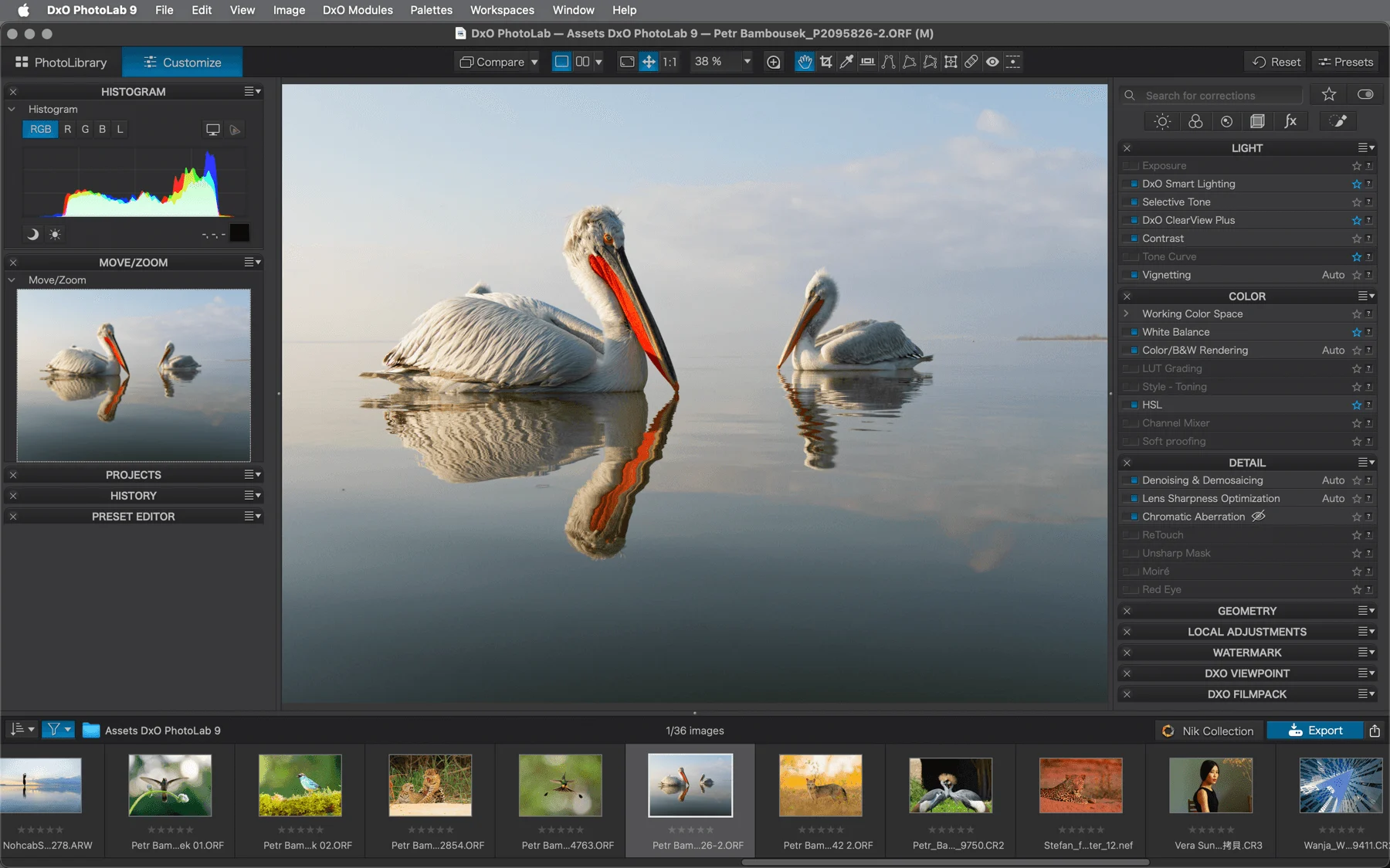
Credit: userguides.dxo.com
PhotoLab isn’t a manipulation tool. It’s an image-quality tool, and it’s the best one here.
Its lens correction profiles and DeepPRIME noise reduction are the industry benchmark. If you shoot small products with macro lenses or work in a dim studio at higher ISO, it recovers detail and dynamic range nothing else does.
Here’s the smart way to use it. Process RAW files in PhotoLab, export as DNG or TIFF, then manipulate in Photoshop or Affinity. You get DxO’s optics and your normal workflow.
Its cataloguing is weak, and there’s a learning curve.
- Price: around $139.99 for Essential, $239.99 for Elite.
- Best for: jewelry, watches, and anything with fine texture.
ON1 Photo RAW: Best All-in-One on a Budget
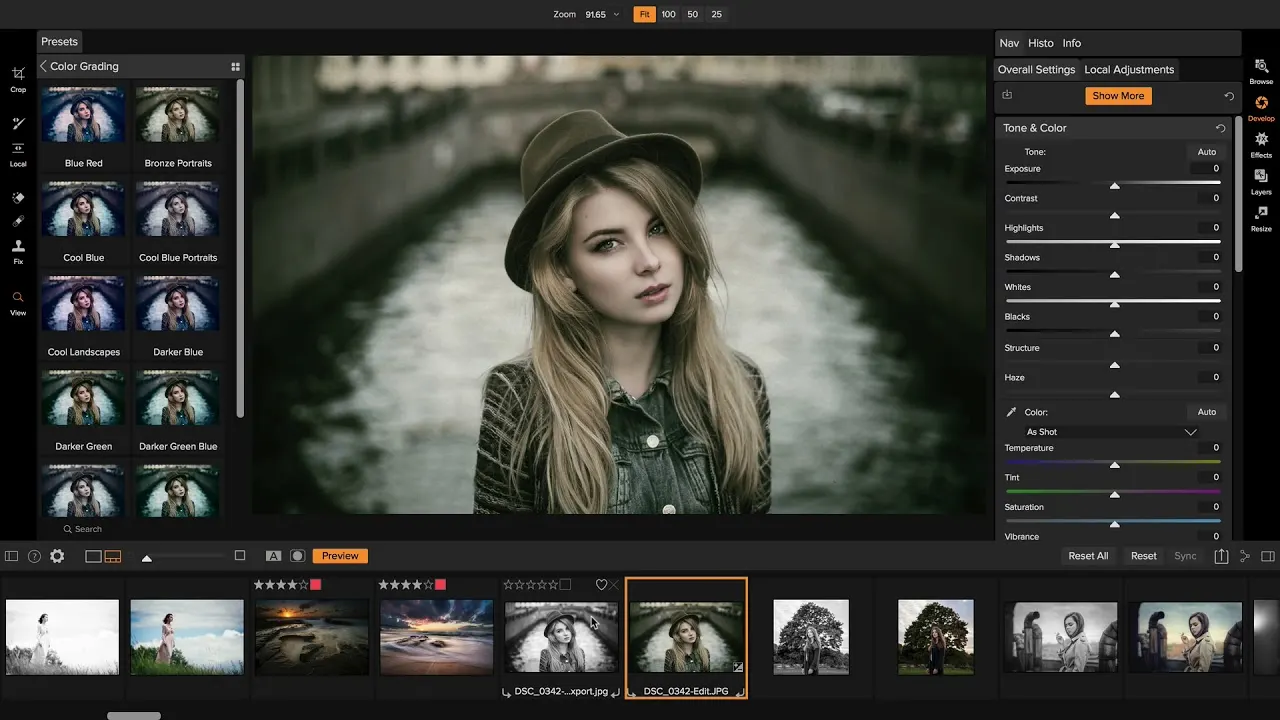
Credit: on1.com
ON1 is the value pick, and it’s an odd one in a good way.
It’s a browser, a RAW editor, an effects library, and a layer-based editor in one app. That combination is rare at this price. If you don’t want three separate subscriptions, it covers a lot of ground. The artistic filters and presets are genuinely good for lifestyle and social crops.
You also choose between a subscription and a one-time purchase; that flexibility is getting rare.
Where it loses is polish. The interface muddles browsing and cataloguing, and masking can be confusing. RAW processing is solid but not class-leading.
- Price: around $80 for a perpetual license.
- Best for: small teams who want everything in one app, cheaply.
Darktable: Best Open-Source RAW Workflow
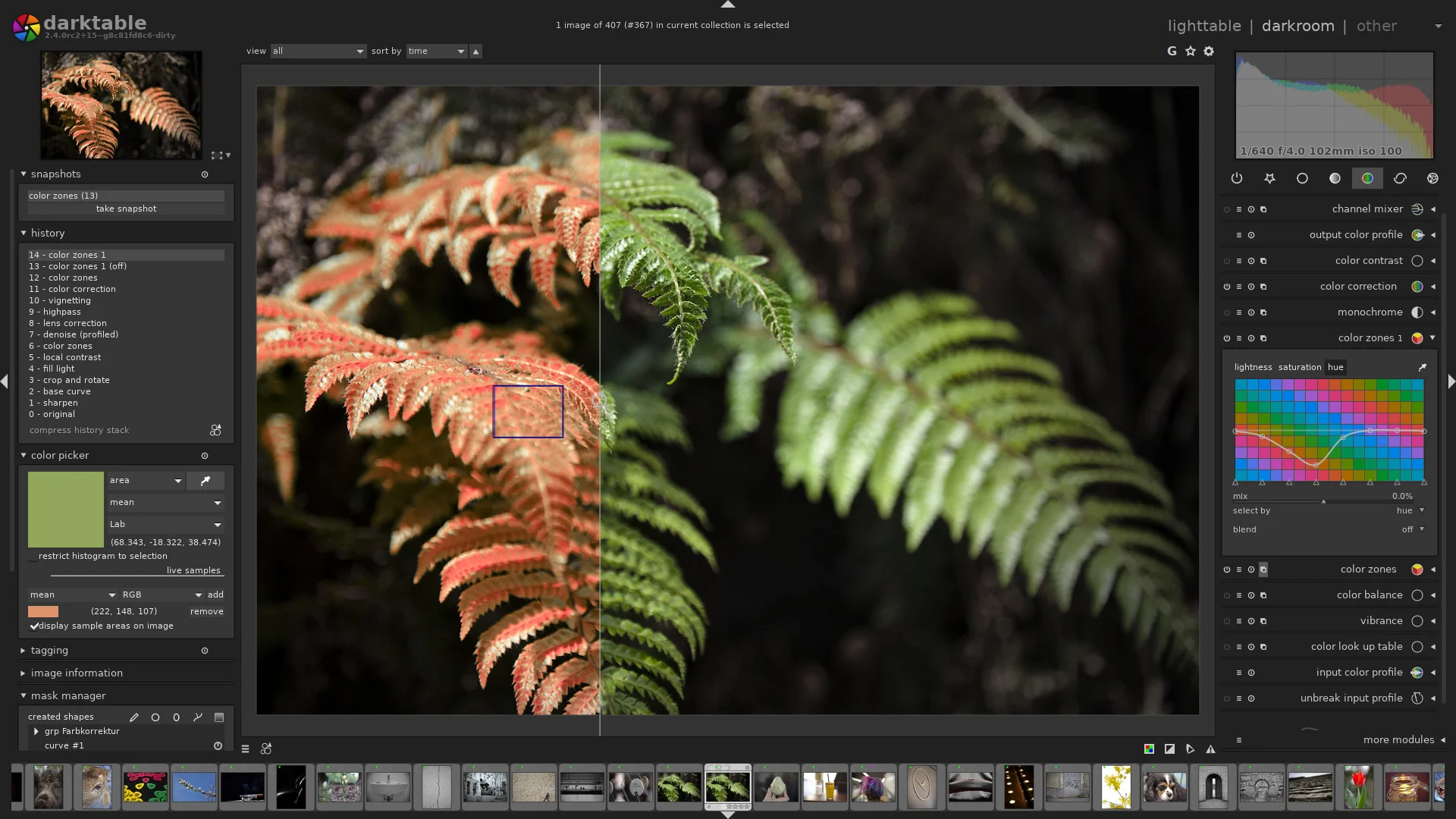
Credit: darktable.org
It is free, open source, and genuinely powerful for RAW processing.
But let’s be honest about what it is. Darktable develops RAW files; it has no layers, no compositing, and no serious cutout work. So it handles your consistency pass, not your manipulation.
If you go free, the realistic stack is Darktable for RAW plus Affinity or GIMP for retouching tools.
Since Affinity now costs nothing, that maths has changed. Darktable makes the most sense on Linux, or if you want a fully open-source pipeline.
- Price: free.
So which is the best software for photo manipulation in your case?
- Cutouts and composites daily → Photoshop
- That power without paying → Affinity
- Shooting tethered in a studio → Capture One
- Batch-correcting big catalogues → lightproof
- Tiny, highly detailed products → DxO PhotoLab into Photoshop
- One app, one payment, small budget → ON1 Photo RAW
Notice that most real workflows use two tools. One organizes and corrects. One manipulates. That’s not indecision. That’s how studios actually work.
Photo Manipulation Software vs Basic Photo Editors: What Is the Difference?
This trips up a lot of new sellers, so let’s clear it up.
A basic photo editor changes how an image looks. Canva, Snapseed, and your phone’s photo app. You adjust brightness, apply a black-and-white photo filter, crop, and maybe blur a background. The pixels stay roughly where they were.
Photo manipulation software changes what’s in the image. You remove an object and build a shadow that never existed. You replace a background, straighten a crooked label, or merge three exposures into one clean shot.
This level of editing is especially important for e-commerce brands that rely on polished visuals, which is why many businesses use professional product image editing services to maintain consistent catalog quality.
Three practical differences matter for product work.
Adjustment layers. Basic editors flatten everything; manipulation software keeps your shadow, product, and background separate. So when a client wants a warmer shadow, you change one layer.
Bit depth and color. Most basic editors work in 8-bit sRGB. Push the colors, and they band and posterize. Professional tools work in 16-bit with proper profiles; your edits survive.
Precision selection. A basic editor gives you automatic background removal, but a professional tool lets you fix what that removal got wrong.
Here’s the test I’d use. If your edits are cosmetic, a basic editor is fine. If your edits change what a customer believes they’re buying, you need the professional tool and the accuracy that comes with it.
Ending Remarks
There’s no single best photo manipulation software. There’s only the one that matches the work in front of you.
If you cut out products and build shadows, Photoshop is still the answer. If your budget is zero, Affinity is now an outrageously good deal. If you shoot tethered, Capture One earns its price. And if your images are noisy or macro, run them through DxO first.
But software is the smaller half of this. Consistent lighting, a color checker in your first frame, and a repeatable export recipe will improve your catalogue more than switching apps ever will.
Pick one tool, and learn its masking properly. Build a preset and an export preset you reuse every shoot. That’s what makes a catalogue look professional, not the logo on the app icon.
Frequently Asked Questions
The right software depends on your goals, so here are some simple answers to help you decide.
What is the best photo manipulation software for beginners?
Affinity, because it’s free and full-featured. If you want faster results with less learning, try Luminar Neo. Just check its AI output carefully before you publish anything.
Do I need Photoshop for e-commerce product photos?
Not always. For simple background removal and color correction, Lightproof or Affinity is enough. You need Photoshop when you’re doing detailed cutouts, shadow building, or composites regularly.
Is the best free software to manipulate photos good enough for professional work?
Yes, far more than it used to be. Affinity gives you adjustment layers, 16-bit editing, and refine-edge selections at no cost. The gap now is cataloguing, not editing power.
Is there software to detect photo manipulation?
Yes. Forensic tools like FotoForensics and Adobe’s Content Credentials can flag edited or AI-generated images. Marketplaces increasingly check this. So keep your edits honest and your originals archived.
How much editing is too much for a product photo?
The rule is simple. Fix what the camera got wrong, like white balance, dust, and lens distortion. Don’t change what the customer will notice on arrival, like color, texture, or proportions.